How to sync your iPhone to a new computer without losing data
May 14th, 2011 | Published in Mind
My old laptop was at its end-of-life, it’s had over heating problems and lately the hard-drive has been failing. It’s been good to me though, pretty much daily use for 3 years straight (and a few beatings). So I got a new laptop, with Windows 7 installed — the old one had Windows XP. I looked everywhere to find out how to sync your iPhone to a new computer without losing data but I came up pretty short.
Here are the steps I took (the easiest steps) to transfer all my data and keep my iPhone synced to my new laptop without losing data and having to re-organize everything.
Transfer your iTunes library to your new computer
Apple actually has a pretty good knowledge base article on transfering your iTunes library to a new computer. I performed the “Home Sharing” option, it worked out well. If you do it, run it at night when no one else will be using the internet… this import will pretty much saturate your network connection. I had about 28GB of data to transfer, it was completed by the time I got up the next morning.
Sync your iPhone to the new computer
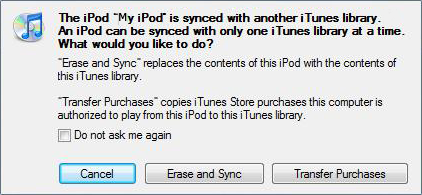
When I hooked up my iPhone to the new computer, it warned me that it would erase everything. I did not like this at all… my iPhone setup is just the way I want it and I did not want to have to deal with losing all my data. So I looked all over the internet to find out the best way setup a new computer to handle syncing an iPhone.
I found this incomplete documentation for doing what I needed, except it didn’t go into nearly enough detail. I suspect it was because I was moving from Windows XP to Windows 7, but even if your username changed I think you would still have trouble. His documentation focuses on the “Library Persistent ID” but when I changed just that ID, iTunes didn’t recognize anything from my library. I think this is because the “Library Persistent ID” is tied to the other file’s ‘Persistent ID”, so you’d need to change all their IDs too. But I found an easy way to deal with this. This is what I did:
These are the steps from the video above:
- Locate your iTunes music folder (can be found in Edit -> Preferences in iTunes)
- Close iTunes
- Backup the iTunes Music Library file and the iTunes Library file
- Get a copy of your old computer’s iTunes Music Library file
- Open the new iTunes Music Library file and the old iTunes Music Library file
- Perform a Find/Replace on the old iTunes Music Library file — I used Notepad++to do this.
- In the old file search for the Music Folder <string> (e.g. file://localhost/C:/Documents%20and%20Settings/layotte/My%20Documents/My%20Music/iTunes/iTunes%20Music/)
- Replace with the value from the new file (e.g. file://localhost/C:/Users/layotte/Music/iTunes/iTunes%20Media/)
- Save the newly created file contents into the new computer’s iTunes Music Library file.
- Open the new computer’s iTunes Library file, put some random characters in it and save (this causes it to be corrupted).
- Open iTunes.
iTunes now recognizes the corrupt file and rebuilds your Library with the new persistent ID from the iTunes Music Lirbary file. After that, you will be able to check the button without being prompted to Erase and Sync your data.


